

Leaflet Details
| Title | Putting you in Control: Downloading your Data |
| Department | Diabetes |
| Author(s) | DM Team |
| Review Date | December 2023 |
| Next Review | December 2025 |
| Download | A5 Booklet PDF |
| Accessibility Options | Click on the Recite Me button to show our accessibility resources |
Patient Information
Introduction
How to download and share your data from:
- FreeStyle Libre
- Blood Glucose Meters
- Insulin Pumps
- Dexcom CGM
- MyLife
You have the technology
The availability of FreeStyle Libre, blood glucose meters, insulin pumps and Dexcom Continuous Glucose Monitors (CGM) are all tools that can help you to get the best possible control. Making the most of the equipment available to manage your diabetes can help to improve your quality of life by:
- Enabling you to be proactive with your diabetes care
- Reducing the risk of diabetes associated health conditions and
- Reducing the challenges of living with diabetes
Ashford and St Peters (ASPH) NHS Foundation Trust want to make this as easy as possible for you.
Putting YOU in control of your diabetes
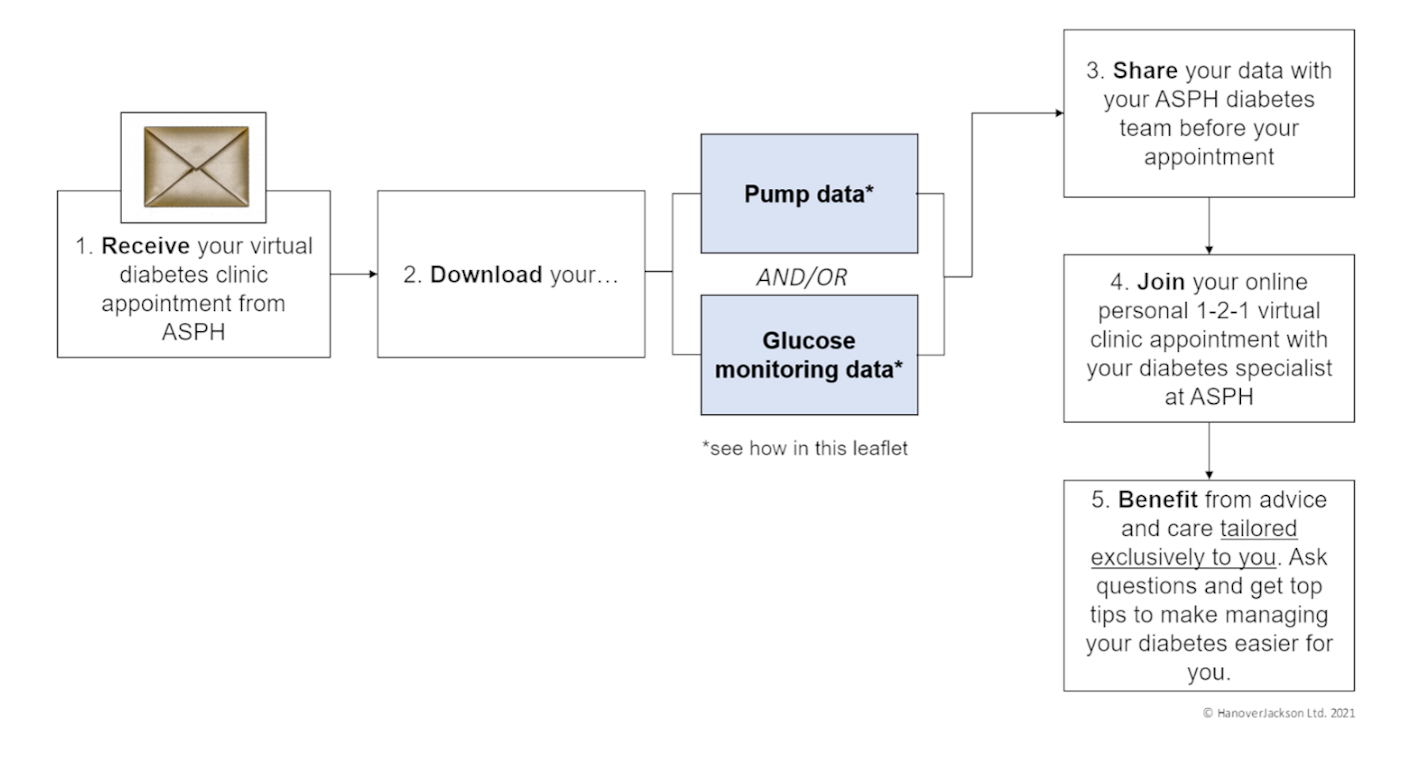
ASPH are moving towards offering more virtual clinics (by video or telephone calls) in future to:
- save you time and money
- reduce time off from work
- provide you with a more relaxed environment with comfortable surroundings
- reduce environmental impact and onsite parking issues
- enable the ASPH team to focus on delivering more patient care
The ASPH Team is ready to give you their best support to ensure everything is set up and running to achieve that. All they need is to see your data in good time before your clinic appointments.
How does it work?
Where to download
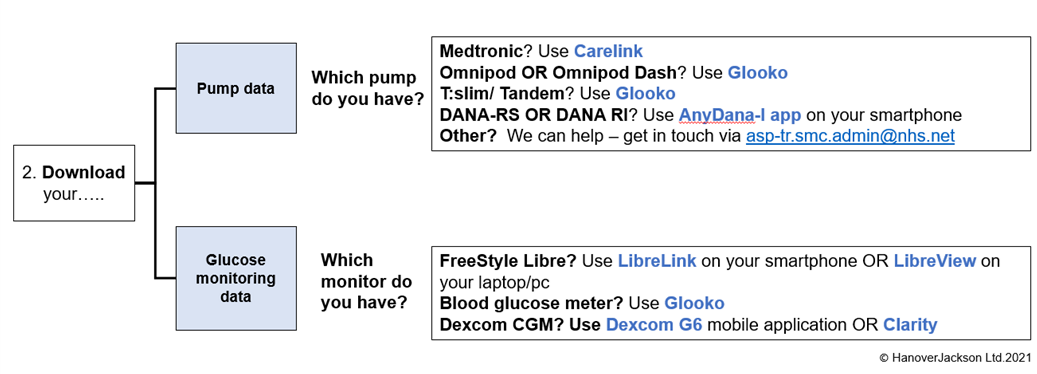
Use the diagram below to find your device and the relevant platform to download your data
FreeStyle Libre
FreeStyle Libre - Download via LibreView
- Go to https://pat.libreview.io/articles/link-your-account
- To link with Ashford & St Peter’s Clinic, enter the following Clinic ID: 12322066 under LibreView in “Connected Apps”
Blood Glucose Meters
All meters - Download via Glooko
- Refer to the Glooko quick start guide which would have been sent with this leaflet
- For compatible meters refer to page 4-5 of the quick start guide
- Sign up for a Glooko account at https://join.glooko.com/ if you don’t have one
- Refer to pages 8-12 of the quick start guide to install the Glooko software and download your glucose meter
- To link your Glooko account to Ashford and St Peter’s hospital:
- Log into your My Glooko account
- Using a Browser? Click Settings > Account > Add New Code
- Using the mobile app? Click More > Profile > ProConnect
- Log into your My Glooko account
- When prompted to confirm if you would like to proceed, click Continue
- Enter the following ProConnect code: ukpeter
Insulin Pumps
Medtronic pumps - Download via CareLink
- Link to access Carelink Personal software:
https://carelink.minimed.eu/app/login
- Carelink Personal Guide - video showing how to register for a patient account
https://www.youtube.com/watch?v=JcqXLBTUN2o
- Carelink Personal - video showing how to upload pump data using the Carelink Uploader:
https://www.youtube.com/watch?v=F4KKOkChKSo
Please note that this video content is hosted by YouTube, and they will collect visitor information such as viewership data. An "incognito mode" is available on mobile devices, while desktop users may wish to enter the private mode on their browser.
Sharing your data with your ASPH clinic via CareLink
1. With username:
We will need your username to send you an email through CareLink where you will need to grant the Diabetes clinic permission to connect with your account. Please send your username to:
2. With username and password:
In order to enable health care professionals to review your pump download without connecting to the Diabetes clinic, you would need to give the health professional permission to login with your username and password each time to review your pump downloads.
Omnipod, Omnipod DASH and T:slim - Download via Glooko
1. Refer to the Glooko quick start guide which would have been sent with this leaflet
2. Sign up for a Glooko account at https://join.glooko.com/ if you don’t have one or sign in at https://my.glooko.com/users/sign_in
3. Refer to pages 8-12 of the quick start guide to install the Glooko software onto your laptop / PC / tablet
4. Download your pump
- For Omnipod & Omnipod Dash:
- Connect the PDM (personal diabetes manager) to your laptop/pc using the USB cable. And
- Press the power button on the PDM
- Unlock the PDM and tap “Export” on the screen
- For T:slim/tandem
- Connect the pump to your laptop / pc using the micro USB cable and follow the prompts
5. Link your Glooko account to Ashford and St Peter’s hospital:
- Log into your My Glooko account
- Using a Browser? Click Settings > Account > Add New Code
- Using the mobile app? Click More > Profile > ProConnect
- When prompted to confirm if you would like to proceed, click Continue
- Enter the following ProConnect code: ukpeter
Dana-RS & DANA-i
- Connect the pump to your smartphone as usual for smartphone control.
- Select ‘review ‘in the smartphone application to collect all history to ensure your data is ready to export.
- Using the box / arrow on the top right corner of the application screen, select how you would like to share the xls file which has now been generated e.g. email.
- Email data to yourself. This can also be forwarded to your ASPH Diabetes Care Team.
Dexcom - Continuous Glucose Monitors (CGM)
Dexcom CGM via Clarity
Please refer to Preparing for your Clinic Appointment: https://www.dexcom.com/en-GB/healthcare-professionals/education-resources/clinic-resources
Sharing your data with your ASPH clinic via Dexcom Clarity
A health professional at the clinic will send you an email via Dexcom.
- Make a note of the code provided in the green box of the email
- Select the green link below the green box
- You will be taken to a login page - input your login details (username and password)
- Once you have logged in, enter the code provided to connect
GDPR Permissions
Please review the GDPR permissions in Clarity to enable health professionals to review your data if required
- Select “Profile” in the Dexcom mobile application at the bottom right hand corner
- Select “Manage consent”
- Select the relevant boxes
Yypsomed myLife application (Bolus advisor)
You can link your Ypsomed MyLife account to your Glooko account for wireless syncing of your glucose data once every hour from your account. Please refer to the following link for instructions:
To link your Glooko account to Ashford and St Peter’s hospital:
- Log into your My Glooko account
- If using a Browser: Click Settings > Account > Add New Code
- If using mobile app: Click More > Profile > ProConnect
- When prompted to confirm if you would like to proceed, click Continue
- Enter the following ProConnect code: ukpeter
Can’t get your downloads working?
Contact the customer helpline of the company that manufactures your device.
If you need sign posting, please contact:
Useful websites
- https://carelink.minimed.eu/app/login
- https://glooko.com/en_UK/
- https://clarity.dexcom.eu/
- https://www.freestyle.abbott/uk-en/home.html


